
Tooltip
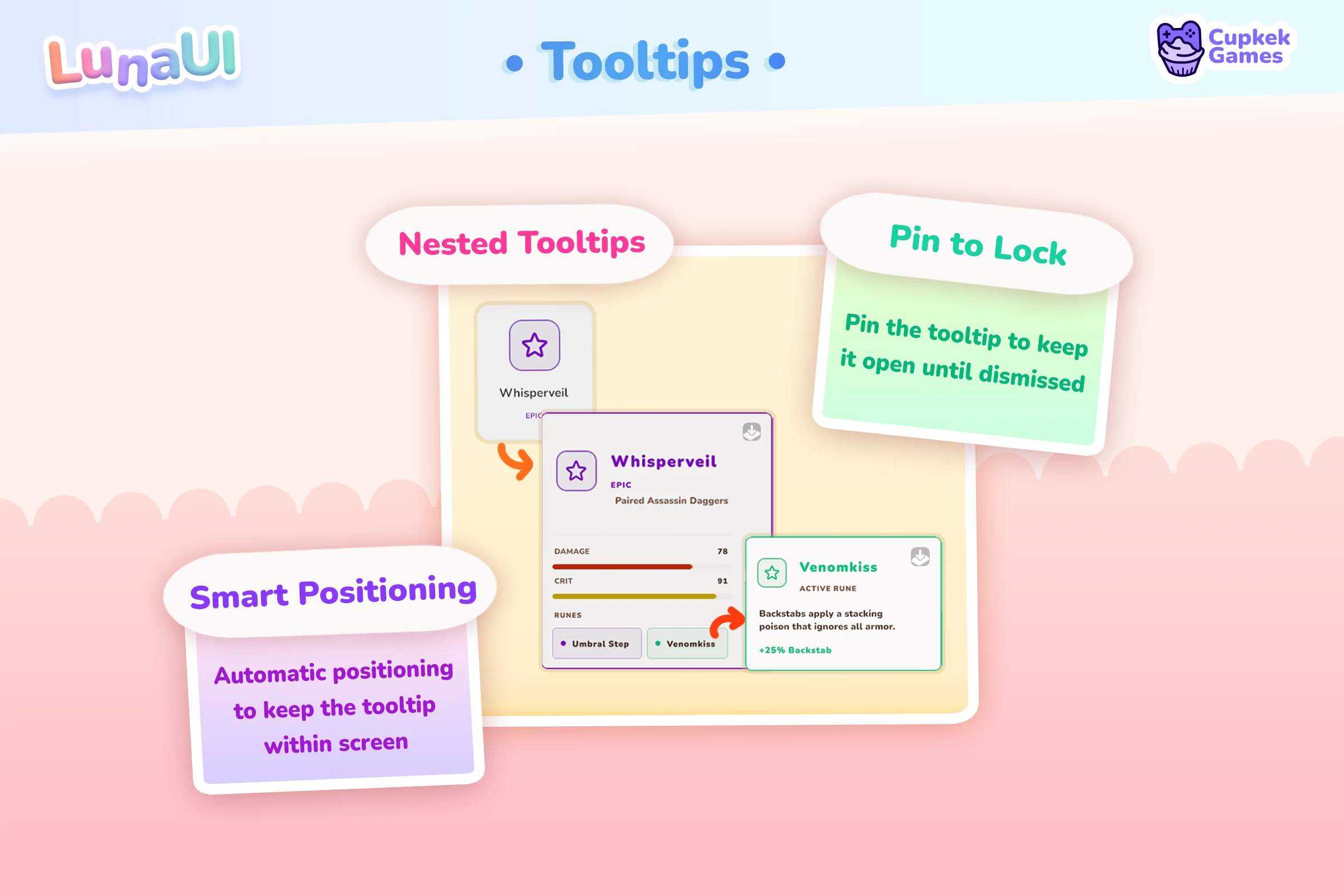
Tooltip + TooltipController + TooltipManipulator together drive a smart hover/focus tooltip system: smooth size/position tweens, off-screen prevention, multi-column comparisons, nested tooltips, and pooling.
Features
- Smooth size/position updates with configurable fade settings
- Auto-positioning that prevents tooltips from going off-screen: a tooltip keeps its side and slides along it first, and flips only when that side has no room
- Multi-column layouts — perfect for inventory-vs-equipped comparisons
- Nested tooltips with customizable locking behavior
- Object pooling for performance with many tooltips
- Disabled state to programmatically gate tooltip opening
Setup
- Place a single
TooltipControllerMonoBehaviour in the scene; it owns the on-screenTooltipelement. - For each element that should show a tooltip, add a
TooltipManipulatorwith one or moreTooltipContainerSetups.
[SerializeField] private TooltipController _tooltipController;

// `root` is the visual tree delivered by your PanelRenderer's reload
// callback — see the Example below.
VisualElement target = root.Q<VisualElement>("TooltipOnHover");

// The tooltip's content slots are plain VisualElements you create:
VisualElement image = null;                       // optional icon slot
Label title = new Label("My Tooltip Title");
Label body  = new Label("My Tooltip Description");

var setup = new TooltipContainerSetup(
    image, title, body, bottom: null,
    colorBackground: new UIColor("slate", UIColorValue.V_800),
    colorBorder: new UIColor("slate", UIColorValue.V_200)
);

var manipulator = new TooltipManipulator(gameObject, _tooltipController);
manipulator.SetSetup(setup);
target.AddManipulator(manipulator);
⚠️ One
TooltipManipulatorinstance per target element. AManipulatorattaches to one element at a time, so adding the same instance to a second element silently detaches it from the first. (TheTooltipContainerSetupcan be shared across manipulators.)
Inspector (UxmlAttributes)
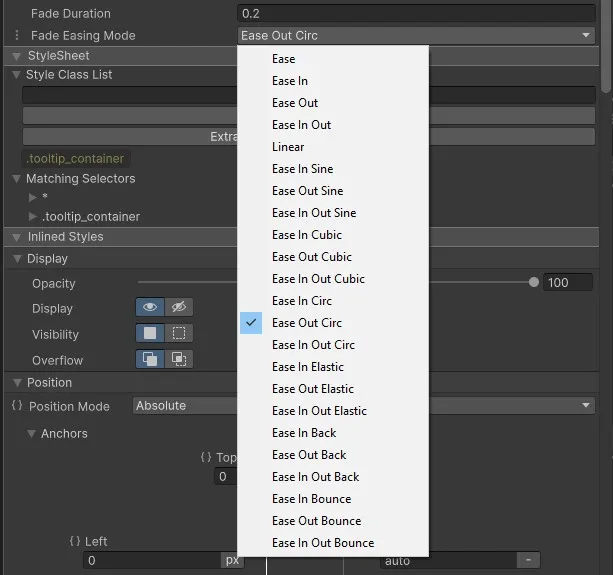
The Tooltip element exposes fade settings:
| Attribute | Description |
|---|---|
FadeDuration | Duration of the built-in fade-in/out animation. |
FadeEasingMode | Easing curve for the built-in fade. |
show-transition | Optional Transition Sequence asset — replaces the built-in fade for showing tooltip items. |
hide-transition | Optional sequence asset replacing the built-in fade-out; the item is hidden and pooled when the sequence completes. |
debug-log | Enables [Tooltip] console logging (pool get/release, show/hide, geometry repositions, coordinate math) for diagnosing positioning issues. Backed by the static Tooltip.DebugLog, so it applies to all tooltips while set. |
Show/hide transitions (juice)
When show-transition / hide-transition are set, tooltip items animate with designer-authored sequence assets instead of the built-in opacity fade — pop-in with scale, directional slides, whatever the asset describes. Asset paths in UXML must be relative to the .uxml file:
<CupkekGames.Luna.Tooltip name="MyTooltip" picking-mode="Ignore"
    show-transition="Presets/TooltipShowPop.asset"
    hide-transition="Presets/TooltipHideFade.asset"/>
Authoring rules for these assets:
- Both should use
Persist— their end state (fully shown / fully hidden) is the point. The show asset should open with instantSetOpacity(0)/SetScale(0.9)steps so a reused pooled item always starts from the hidden pose. - The
OnFadeInStart/OnFadeIn/OnFadeOutStart/OnFadeOutitem events fire the same as with the built-in fade, so lock/level/pool behavior is unchanged. - Re-showing during a hide cancels the pending hide cleanly (the item never gets stuck hidden).
- If neither attribute is set, behavior is exactly the pre-existing
FadeDurationfade — zero migration needed. - Positioning is computed from the item's untransformed layout size, so scale/translate transitions never affect where the tooltip lands — it is placed before the show transition starts (when the pooled item already has a layout) and re-placed automatically whenever its content size changes.
- Anchored (non-
tooltip-follow) tooltips reposition only on real geometry changes of the item or the target — never on mouse move — so an in-flight transition on either element can't make the tooltip twitch. Onlytooltip-followtooltips track the pointer.
CSS classes
Add these to the target element (the one that should display a tooltip), not to the tooltip itself.
Position
Default position is top.
| Class | Effect |
|---|---|
tooltip-left | Position the tooltip to the left of the target. |
tooltip-right | Position the tooltip to the right of the target. |
tooltip-bottom | Position the tooltip below the target. |
The class is the preferred side, and the tooltip stays on it whenever the side has room along its own axis. Off-screen prevention works in two steps: first the tooltip slides along the chosen edge (a tooltip-right card anchored to a target near the bottom of the panel moves up until it fits; a tooltip-top card near the right edge moves left), and only when the side itself has no room (the card would cross the panel edge on that axis) does it flip: to the opposite side first, then the remaining positions, picking the first that fits or the one that overflows least. A wide card on a target in the last column therefore lands on the left even with tooltip-right set; that is the flip, not a bug. Set debug-log on the Tooltip element to log every placement decision.
Follow mouse
| Class | Effect |
|---|---|
tooltip-follow | Position the tooltip relative to the cursor and follow it. Position classes still apply. |
Styling the card
Backgrounds: flat vs effect
The tooltip card has two background paths:
- Flat — pass
colorBackground/colorBorderand the card is painted withbg-*/border-*utility classes. Zero extra elements; this is the default path (falls back toscarlet-900/coral-400when you pass nothing — retheme that below). - Effect — pass any
VisualElementasabsoluteBackground. It's injected into a dedicated absolute layer that fills the card behind the content and is clipped to the card's rounded corners — so gradients, 9-sliced frames, or shader effects (e.g. aluna-fx luna-fx-matteelement) render as the card surface without ever touching the title/body layout. Pair it withcolorBackground: new UIColor("transparent", ...)if you don't want the flat fill underneath.
// A custom surface behind the tooltip content (see the Showcase RPGDemo)
VisualElement fx = new VisualElement();
fx.AddToClassList("rpg-tooltip-background");   // styled in your USS

var setup = new TooltipContainerSetup(icon, title, body, bottom,
    colorBackground: null, colorBorder: null, maxWidth: 512,
    absoluteBackground: fx);
The layer's positioning (absolute overlay + stretched child) is structural and ships in the runtime library (LibTooltip.uss), so it works under any theme. Themes are free to restyle the layer itself — the RPGDemo sample insets it 8 px and paints a 9-sliced border texture on it (RPGTooltip.uss).
Retheming the default colors
Setups that pass no colors get the tooltip_bg_default / tooltip_border_default classes, which resolve two theme variables — no color lives in code. Define them in your theme to give every plain tooltip your game's look; per-setup colors always win over the default:
:root {
  --luna-tooltip-bg: var(--color-slate-950);
  --luna-tooltip-border: var(--color-slate-500);
}
The Essentials theme defines both (scarlet-900 / coral-400, the demo look) in DefaultTooltip.uss, and the runtime library carries a matching fallback so themes that define neither still render the shipped colors. The two default classes are ordinary USS — a theme may also restyle them directly with any properties, not just colors.
Custom classes and pooling
Tooltip items are pooled and reused across unrelated setups, so the system clears class lists on some elements at every show to prevent style leaks. Know which elements keep a manually added class:
| Element | Classes survive re-show? |
|---|---|
Elements you pass in (image, title, body, bottom, absoluteBackground) | ✅ — they're your objects; style them freely before handing them over. |
Built-in slots (TooltipTitle, TooltipBody, TooltipAbsoluteBackground, …) | ✅ — never cleared, only their children are replaced. |
| The container card | ❌ — ClearClassList() runs every show; only the colorBackground/colorBorder classes are re-applied. |
The root .tooltip_item element | ❌ — reset on every Show(). |
To put a persistent custom look on the card itself, go through the UIColor channel: UIColor.Name is a free string and the applied class is simply bg-<name>-<value> (or border-<name>-<value>). Define that class in your USS — it may contain any properties, not just a color — and it's re-applied after the clear on every show:
// class "bg-mystyle-900" — define it yourself in USS
var setup = new TooltipContainerSetup(icon, title, body, bottom,
colorBackground: new UIColor("mystyle", UIColorValue.V_900));.bg-mystyle-900 { background-color: rgba(10, 8, 24, 0.95); border-radius: 16px; }
.bg-mystyle-900 .tooltip_title Label { color: gold; } /* descendant selectors reach everything */API
TooltipController
Owns the Tooltip element living in its GameObject's PanelRenderer tree. Built on PanelRendererBinder, so Tooltip stays null until the panel delivers its tree — consumers (like TooltipManipulator) null-guard on it.
TooltipController.Tooltip.SetTooltipEnabled(false);   // mute all tooltips
TooltipController.Tooltip.SetTooltipEnabled(true);    // resume
Useful during drag operations, cutscenes, or when another UI element should have focus.
Tooltips silently not showing? If the controller's panel tree contains no
<luna:Tooltip>element, every hover no-ops — the controller logs a warning when this happens. Check thePanelRenderer'ssourceAsseton the TooltipController's GameObject (it must be the UXML that contains the Tooltip element, e.g.DefaultTooltip.uxml).
TooltipManipulator
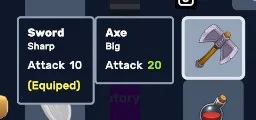
// Multi-column variant (item-vs-equipped comparison)
public TooltipManipulator(GameObject parent, TooltipController tooltipController, List<TooltipContainerSetup> setups);

// Single-column variant
public TooltipManipulator(GameObject parent, TooltipController tooltipController);
manipulator.SetSetup(setup);| Parameter | Type | Description |
|---|---|---|
parent | GameObject | Tooltip auto-closes when this object is disabled. |
tooltipController | TooltipController | Reference to the scene's controller. |
setup(s) | TooltipContainerSetup | Per-column container setup. |
TooltipContainerSetup
public TooltipContainerSetup(
    VisualElement image,
    VisualElement title,
    VisualElement body,
    VisualElement bottom,
    UIColor colorBackground = null,
    UIColor colorBorder = null,
    int maxWidth = 512,
    VisualElement absoluteBackground = null
)| Parameter | Type | Description |
|---|---|---|
image | VisualElement | Image slot (e.g. item icon). |
title | VisualElement | Title slot. |
body | VisualElement | Body slot. |
bottom | VisualElement | Free-form bottom slot — use this when you don't want the prior row layout. |
colorBackground | UIColor | Container background tint. |
colorBorder | UIColor | Container border tint. |
maxWidth | int | Max container width in pixels (default 512). |
absoluteBackground | VisualElement | Optional element rendered as an absolute background behind the container — see Styling the card. |
Example
PanelRenderer delivers its visual tree asynchronously — query the target element in the reload callback, not in Awake/Start:
using UnityEngine;
using UnityEngine.UIElements;
using CupkekGames.Luna;

public class MyTooltipSetup : MonoBehaviour
{
    [SerializeField] private TooltipController _tooltipController;
    [SerializeField] private Sprite _mySprite;

    private PanelRenderer _panelRenderer;

    private void Awake()
    {
        _panelRenderer = GetComponent<PanelRenderer>();
        _panelRenderer.RegisterUIReloadCallback(OnUIReload);
    }

    private void OnDestroy()
    {
        _panelRenderer.UnregisterUIReloadCallback(OnUIReload);
    }

    private void OnUIReload(PanelRenderer renderer, VisualElement root, int version)
    {
        VisualElement tooltipOnHover = root.Q<VisualElement>("TooltipOnHover");

        VisualElement image = new VisualElement();
        image.AddToClassList("size-40");
        image.style.backgroundImage = new StyleBackground(_mySprite);
        Label title = new Label("My Tooltip Title");
        Label body = new Label("My Tooltip Description");
        VisualElement bottom = null;

        UIColor bgColor = new UIColor("slate", UIColorValue.V_800);
        UIColor borderColor = new UIColor("slate", UIColorValue.V_200);

        var containerSetup = new TooltipContainerSetup(image, title, body, bottom, bgColor, borderColor);

        TooltipManipulator manipulator = new TooltipManipulator(gameObject, _tooltipController);
        manipulator.SetSetup(containerSetup);

        tooltipOnHover.AddManipulator(manipulator);
    }
}
See also
- Notifications — non-hover-driven popups
- InputPrompt — gamepad-friendly icons that pair well with tooltips
Settings
Theme
Light
Contrast
Material
Dark
Dim
Material Dark
System
Sidebar(Light & Contrast only)
Font Family
DM Sans
Wix
Inclusive Sans
AR One Sans
Direction