
Progress Bar
Progress Bar family — one shared animation core (ProgressBarData + ProgressBarController), several shapes on top.
This page is the linear bar's full reference; siblings: Overview · Radial · RPG Demo · Architecture.
Quick start — PlayTo
The fastest way to drive a bar is the PlayTo(value) extension — it sets the bar's target and calls PlayProgress() in one null-safe call. Values are in bar units: with the default MaxValue of 1 that's a normalized 0–1 fill; set MaxValue and you pass real units instead (see Absolute values):
<ui:UXML xmlns:ui="UnityEngine.UIElements" xmlns:luna="CupkekGames.Luna">
    <luna:ProgressBar name="XPBar" instant-positive="false" instant-negative="false" style="width: 300px; height: 24px;" />
</ui:UXML>// Inside your PanelRenderer reload callback (see the full Example below):
var xpBar = root.Q<CupkekGames.Luna.ProgressBar>("XPBar");
xpBar.PlayTo(0.65f); // animates the fill to 65%Important: both instant flags default to
true, so theinstant-positive="false" instant-negative="false"attributes above are what make the change animate — without themPlayTosnaps to the value instantly.
PlayTo / PlayProgress / PlayIndicator are attach-safe — call them straight from your reload callback even before the bar finishes attaching; the play is queued and replays once the bar is built (no one-frame schedule.Execute deferral needed).
public static void PlayTo(this IProgressBarElement bar, float value);PlayTo covers the common single-segment case. Everything below — indicator previews, multi-segment fills, gap lines, multi-pass level-ups — uses the explicit TargetValue + PlayProgress() / PlayIndicator() API.
ProgressBarandRadialProgressBarboth implementIProgressBarElement(Data,MaxValue,RescaleMaxValue,PlayProgress,PlayIndicator,SetIndicatorStyle), so every extension on this page —PlayTo,SnapTo,SnapProgress,SetFilling,PlayMultiPass— works identically on either bar, and you can write your own helpers against the interface.
Absolute values — MaxValue
If you'd rather work in real units (HP, XP, mana) than normalized fractions, set MaxValue and the bar divides for you — TargetValue / TargetIndicator (and PlayTo / SnapTo) then take an absolute value in 0…MaxValue:
healthBar.MaxValue        = maxHp;    // declares the unit system (the denominator)
healthBar.TargetValue     = hp;       // absolute HP — bar draws hp / maxHp and animates
healthBar.TargetIndicator = hp;       // absolute — the trailing indicator preview
Reads like Unity's Slider (maxValue + value) — no manual / total at the call site.
There are two distinct intents when assigning a max, and the API keeps them explicit:
MaxValue(max-value, default1) — declares the unit system. Assigning it never touches the fill; values you set afterwards are interpreted against the new max. Use it at setup time.RescaleMaxValue(newTotal)— the total changed at runtime (shield added on top of HP, a buff raising max). Re-proportions the current fill and targets instantly so the same absolute value stays drawn, then updatesMaxValue. This is the honest rendering for "the denominator changed, the value didn't" — nothing animates, the fill just occupies its new fraction. If an animation is mid-flight, set your targets and play as usual right after (every demo does).TargetValue— absolute target for segment 0; the setter callsPlayProgress()for you.TargetIndicator— absolute target for the indicator; the setter callsPlayIndicator().CurrentValue/CurrentIndicator— read-only, absolute (the live animated fraction ×MaxValue).
The max lives on ProgressBarData (single source of truth — the element properties forward to it), so anything holding the bar's Data sees the same scale.
With MaxValue left at its default 1, absolute == normalized — TargetValue = 0.65f still means 65%, so authored UXML values and the raw Progress[] array are unchanged. The identical API is on RadialProgressBar.
UXML: when authoring
target-valuein UXML, always authormax-valuealongside it — without a declared max,target-value="75"is 75 on a max of 1 and clamps to a full bar.
For multi-segment bars, keep setting each Progress[i].TargetValue as a normalized fraction, and call RescaleMaxValue(total) when the total changes (see Dynamic max value).
Snap without animating — SnapTo / SnapProgress
To set a value with no fill/drain animation (initial setup, a reset), use these instead of toggling the instant flags by hand:
bar.SnapTo(0f);        // segment 0 + indicator to an absolute value (÷ MaxValue), instantly

// multi-segment: set each Progress[i].TargetValue first, then snap them all:
bar.Progress[0].TargetValue = h; bar.Progress[1].TargetValue = s;
bar.SnapProgress();SnapTo(value)— sets segment 0 + the indicator to an absolutevalue(÷MaxValue, matchingTargetValue) and snaps.SnapProgress()— jumps every segment and the indicator to their current targets instantly.
Snaps are silent: they write the values through directly and settle the animator, so no fill/drain transition effects fire and your InstantPositive / InstantNegative flags are never touched. They're also attach-safe — snapping a detached bar takes effect when it attaches. Both replace the bool p = bar.InstantPositive; …= true; Play…(); …= p; save/force/restore idiom. Same API on RadialProgressBar.
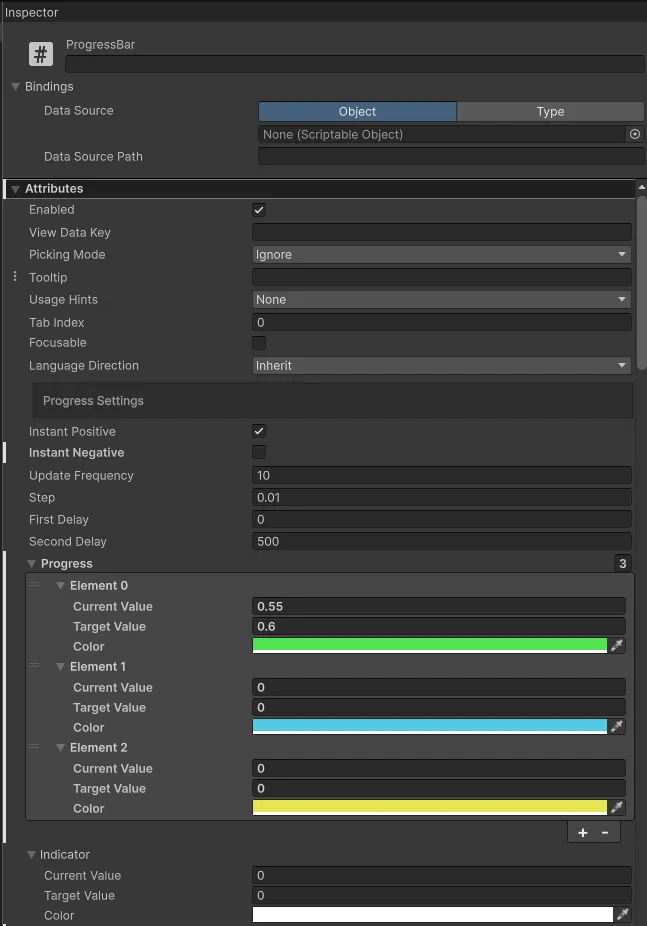
Attributes
| Attribute | Description |
|---|---|
| Progress Settings | |
| Instant Positive | If value increased Progress and Indicator changes will be shown instantly. |
| Instant Negative | If value negative Progress and Indicator changes will be shown instantly. |
| Fill Duration Ms | Wall-clock duration of a positive (fill) animation in milliseconds. Default 500. 0 snaps instantly. |
| Drain Duration Ms | Wall-clock duration of a negative (drain) animation in milliseconds. Default 350. |
| Fill Easing | Easing curve for fills (CupkekGames.Fadeables.EasingType). Default SineInOut. Overshoot easings like BackOut/ElasticOut are supported. |
| Drain Easing | Easing curve for drains. Default QuadOut (snappy damage). |
| Duration Mode | Fixed (default): every animation takes the configured duration regardless of distance. PerUnitDistance: duration scales with the change size (a 10% change takes 10% of the duration, floored at 50 ms) so small ticks feel quick and full sweeps feel weighty. |
| Indicator Duration Scale | Multiplier applied to the indicator's duration. Default 1. Bump to ~1.5 for a lingering damage ghost. |
| Indicator Mode | Which change directions use the indicator: Both (default), NegativeOnly (damage ghost only — heals tween the bar directly), PositiveOnly, None. In a suppressed direction the indicator snaps to the target invisibly (transparent) and the bar becomes the first stream — it animates with First Delay instead of waiting Second Delay. NegativeOnly is the classic RPG feel: instant-feeling heals with an animated fill, trailing red ghost on damage. With positive suppressed, OnFilled tracks the segments only (the indicator no longer leads gains). |
| First Delay | Delay (ms) before the first bar starts to move. First bar can be main bar or indicator bar, depending on the change. If change is negative, main bar moves first followed by indicator bar. If change is positive, indicator bar moves first followed by main bar. |
| Second Delay | Delay (ms) before the second bar starts to move. |
| Use Time Scale | When enabled (default: true), animations respect Time.timeScale. Set to false for UI that should animate independently of game time (e.g., loading screens). |
| Progress | Multiple progress fills. |
| Indicator | Indicator fill, hidden under the progress fills. |
| Threshold | Normalized value (0–1, 0 = disabled). While the total fill is at or below it, the bar carries the ProgressBar--below-threshold USS class, fires OnThresholdCrossed, and runs the pulse-below-transition loop if one is assigned. |
| Show Tip | Inserts a zero-width .ProgressBar__tip element pinned at the fill's leading edge (between the last segment and the flex spacer). The bar owns its position only — give it a look via USS (overflow: visible is preset) or attach a Loop transition to TipElement. |
| Transition Effects | See Transition effects (juice) below. |
| Fill Transition / Drain Transition | TransitionSequenceAsset played when a gain / loss animation starts. |
| Fill Complete Transition / Drain Complete Transition | Played when the gain / loss settles (completion accent). |
| Filled Transition | Played when the total fill reaches 1.0 (once per fill-up — the level-up trigger). |
| Pulse Below Transition | Loop asset started while total ≤ Threshold, stopped (and restored) when back above. |
| *-Transition Target | Optional CSS selector resolved under the bar (e.g. .ProgressBar__progress-element); empty targets the bar root. One per slot. Color-animating effects (flash) should target elements that already carry an inline background color — the fill segments (.ProgressBar__progress-element) or the change indicator — where the color write transitions smoothly and RestoreOnEnd returns the exact pre-flash color. On an element with no inline background (containers, background) a color step is an initial style application: USS transitions don't run, so it snaps to a hard full-rect block instead of glinting. Transform effects (punch, shake) are free to target anything, including closest: ancestors. |
| Transition Min Delta | Suppresses the fill/drain (and their completion) transitions when the net change is smaller than this normalized amount — keeps chip damage and XP trickle from spamming juice. |
| Color Settings | |
| Color Background | Background color. |
| Color Indicator Positive | Color of the indicator bar when the change is positive. |
| Color Indicator Negative | Color of the indicator bar when the change is negative. |
| Other Settings | |
| Title | Text to display on the bar. |
| Show Icon | Show icon on left of the ProgressBar. |
| Icon Size | Width and height of the icon. |
| Icon Tint | Image tint for the icon. |
| Gap Line Settings | |
| Gap Line Count | Number of cells. Gap lines drawn = count - 1. |
| Minor Cells Per Major | Number of minor cells per major segment. Major lines are drawn between major segments. |
| Minor Gap Line Width | Width of minor gap lines in pixels. |
| Minor Gap Line Color | Color of minor gap lines. |
| Minor Gap Line Range | Vertical range of minor gap lines as a Vector2 (X = start, Y = end, normalized 0 = bottom, 1 = top). (0,1) spans full height. |
| Minor Gap Line Min Spacing | Auto-skips minor lines when cells get too narrow. |
| Major Gap Line Width | Width of major gap lines in pixels. |
| Major Gap Line Color | Color of major gap lines. |
| Major Gap Line Range | Vertical range of major gap lines as a Vector2 (X = start, Y = end, normalized 0 = bottom, 1 = top). (0,1) spans full height. |
Progress Attributes
| Attribute | Description |
|---|---|
| CurrentValue | Clamp between 0-1. Current fill value. You don't wanna edit this directly. |
| TargetValue | Clamp between 0 and 1. This is the target fill value. Modify this to change the fill level, but simply editing it is not enough—you must also trigger an update. See the example below. |
| Color | Color of the progress bar. |
Custom USS Property
You can customize the appearance by overriding these USS properties in your stylesheet.
For quick styling, you can also use predefined color schemes by adding color classes. For example, adding a palette color class such as sky or red (the theme defines .ProgressBar.sky, .ProgressBar.red, etc.) will apply that family's progress-bar color settings.
Refer to colors to learn about available options.
| Property | Description |
|---|---|
| --progress-bar-bg-color | Sets the background color of the progress bar. |
| --progress-bar-indicator-positive-color | Defines the color of the indicator bar when displaying an increase in value. |
| --progress-bar-indicator-negative-color | Specifies the color of the indicator bar when displaying a decrease in value. |
| --progress-bar-progress-color-0 | Controls the color of individual progress bars. You can define up to 10 different progress colors (0-9) for multi-segment progress bars. |
Baked fills — progress-bar--baked-<color>
The embossed clay look is pure USS now — no control code. (The old progress-bar--clay runtime preset and its ApplyClayPreset hook were removed; the bar no longer knows about effects.) Add a progress-bar--baked-<color> class from the Showcase sample's ProgressBarBaked.uss and the baked clay gradient is painted straight onto .ProgressBar__progress-element via background-image, so it stretches with the animated fill and survives segment rebuilds:
<luna:ProgressBar class="hero-detail__xp progress-bar--baked-violet" />Two things make this work, both in the stylesheet:
- The bar stamps an inline per-segment
background-coloron the fill, which plain USS can't override — the baked classes zero it through the bar's own hook:--progress-bar-progress-color-0: rgba(0,0,0,0)on the bar host. - The fill bakes are square; the track does the rounding (
.ProgressBar__progress-containerhasborder-radius+overflow: hidden).
Setting the fill value is unchanged — the look is presentation-only:
bar.PlayTo(0.6f);See UI Effects for how the bakes themselves are produced.
PlayTo(value) extension
Available on every ProgressBar and RadialProgressBar via ProgressBarExtensions (extensions target IProgressBarElement). Sets the segment-0 target (an absolute value ÷ MaxValue; identical to a normalized fraction while MaxValue is 1) and calls PlayProgress() in one call, with null safety:
public static void PlayTo(this IProgressBarElement bar, float value);Useful regardless of the clay preset:
root.Q<ProgressBar>("XPBar")?.PlayTo(0.824f);
root.Query<ProgressBar>(className: "stat-row__bar")
    .ForEach(b => b.PlayTo(0.65f));
Public Methods
RebuildProgressSegments
Must be called if you change Length of Progress array. Creates or removes progress bars.
public void RebuildProgressSegments()PlayProgress
Call to visually apply the values of Progress array.
public void PlayProgress()PlayIndicator
Call to visually apply the value of Indicator.
public void PlayIndicator()SetIndicatorStyle
This is handled automatically. But if you want, you can change the style of indicator fill manually.
public void SetIndicatorStyle(bool positive)Gain and loss previews — SetFilling
The SetFilling(current, add, max) extension shows a change before it settles, splitting
the fill and the indicator so the bar reads "you are here, this is what changes". On a
gain the fill holds at current and the indicator previews the result; on a loss the
indicator holds at current and the fill drains to the result. It picks the matching
indicator style and plays both, in one null-safe call.
public static void SetFilling(this IProgressBarElement bar, float current, float add, float max);hpBar.SetFilling(current: 40f, add: -15f, max: 100f); // damage: fill drains to 25, indicator marks the lost span
hpBar.SetFilling(current: 40f, add: 25f, max: 100f); // heal: fill holds at 40, indicator previews 65Values are absolute in 0…max and the result clamps to max; SetFilling normalizes
with its own max argument and writes the segment-0 and indicator targets directly, so
it behaves the same whether or not the bar uses MaxValue. Set IndicatorAutoColor = false
first if you drive the indicator colors yourself.
For combat pools (health, armor, shield) prefer
Cell Bar: its Damage/Heal/Add facade
owns this pattern and the full damage grammar.
Dynamic max value (total changes)
When the total changes (max HP rising from equipment, shield/armor added), call RescaleMaxValue(newTotal) — the bar re-proportions its current fill instantly so the same absolute value stays drawn, no manual re-normalization. A plain MaxValue = newTotal assignment would instead reinterpret the fill in the new units (that's for setup, not runtime changes). GapLineCount (the visual cell dividers) stays caller-driven and independent:
float newTotal = maxHp + shield + armor;
_progressBar.RescaleMaxValue(newTotal);                    // re-proportions the fill for you
_progressBar.GapLineCount = (int)(newTotal / hpPerGap);    // visual gaps — independent of MaxValue
Rescaling by the true total rather than a gap-count ratio also avoids the fill jumping whenever the total isn't an exact multiple of the per-gap amount. It's a no-op when the total is unchanged, so it's safe to call unconditionally in a "values changed" handler — the RPG and MOBA demos do exactly that.
Gap Line Overlays
Gap lines are VisualElements positioned on top of progress fills: ruler-style tick marks measuring a continuous fill (the MOBA idiom). For true discrete cells with slant and the combat grammar, use Cell Bar; the two idioms are intentionally separate components.
Features
- Major and Minor Lines: Support for both major segment dividers and minor cell lines
- Auto-skip: Minor lines automatically hide when cells become too narrow
- Dynamic Scaling: Works with
SetGapLineCountWithScaling()for changing max values
Example: MOBA Style Health Bar

// Configure gap lines for a health bar where each cell represents 100 HP
private void SetupHealthBar(float maxHealth)
{
    int cellCount = Mathf.CeilToInt(maxHealth / 100f);
    _progressBar.GapLineCount = cellCount;
    _progressBar.MinorGapLineWidth = 2;
    _progressBar.MinorGapLineColor = new Color(0, 0, 0, 0.5f);
    _progressBar.MinorGapLineRange = new Vector2(0f, 1f); // Full height

    // Major lines every 1000 HP
    _progressBar.MinorCellsPerMajor = 10;
    _progressBar.MajorGapLineWidth = 4;
    _progressBar.MajorGapLineColor = Color.black;
}

// When max HP changes (e.g., from leveling up), rescale + set the new count
// (see "Dynamic max value" above for the SetGapLineCountScaled helper)
private void OnMaxHealthChanged(float newMaxHealth)
{
    int newCellCount = Mathf.CeilToInt(newMaxHealth / 100f);
    SetGapLineCountScaled(newCellCount);
}
Animation Lifecycle Events
ProgressBarData provides events around every animation, enabling event-driven sequencing without polling. These are also what the transition effect slots hook into.
Events
| Event | Type | Description |
|---|---|---|
| OnSegmentAnimationStart | Action<int, bool> | Fires when a segment animation starts. Parameters: segment index, whether positive change. |
| OnIndicatorAnimationStart | Action<bool> | Fires when the indicator animation starts. |
| OnSegmentAnimationComplete | Action<int, bool> | Fires when a segment animation completes. |
| OnIndicatorAnimationComplete | Action<bool> | Fires when the indicator animation completes. |
| OnThresholdCrossed | Action<float, bool> | Fires when the total fill crosses Threshold. Parameters: the threshold, true when crossing upward (recovering). Data.IsBelowThreshold reads the current state. |
| OnFilled | Action | Fires when the bar's visual leading edge — max(segments total, indicator current) — reaches 1.0, latched until it drops below full again. Tracking the leading edge means that with a second-delay stagger the event lands the moment the bar looks full (the leading indicator), not when the trailing fill catches up. Ideal for level-up sounds/VFX — during PlayMultiPass it fires per full pass, never on the partial remainder. Data.IsFilled reads the current state. |
Usage
_progressBar.Data.OnSegmentAnimationComplete += (segmentIndex, isPositive) =>
{
    Debug.Log($"Segment {segmentIndex} animation complete (positive: {isPositive})");
};

_progressBar.Data.OnThresholdCrossed += (threshold, up) =>
{
    Debug.Log(up ? "Recovered above threshold" : "Dropped below threshold");
};
Events fire in all paths: an instant change (via InstantPositive/InstantNegative) behaves as a zero-duration animation — start fires (while the old value is still readable), the value snaps, then complete fires. Start events are skipped when there is no actual change.
Multi-Pass Animation
The PlayMultiPass() extension method animates through multiple full 0→100% cycles. This is useful for XP bars when gaining enough experience to level up multiple times.
Method Signature
public static void PlayMultiPass(
    this IProgressBarElement bar,
    float oldValue,       // Starting value (0…MaxValue)
    int passes,           // Number of full 0→100% passes
    float newValue,       // Final value (0…MaxValue)
    Action onComplete = null,
    Action<int> onPassComplete = null
)
Values are absolute (÷ MaxValue) like the rest of the API — with the default MaxValue of 1 they're the familiar normalized fractions.
Example: XP Bar with Multiple Level-Ups
// Player gains 350 XP, enough for 2 level-ups
int oldLevel = 5;
float oldXPNormalized = 0.7f;   // 70% into level 5

int newLevel = 7;
float newXPNormalized = 0.2f;   // 20% into level 7

int passes = newLevel - oldLevel;  // 2 full passes

_xpBar.PlayMultiPass(
    oldXPNormalized,
    passes,
    newXPNormalized,
    onComplete: () => Debug.Log("XP animation complete!"),
    onPassComplete: (passIndex) => Debug.Log($"Level up! Pass {passIndex}")
);
Other Multi-Pass Methods
// Cancel an active multi-pass sequence
_progressBar.CancelMultiPass();

// Check if multi-pass is currently running
bool isActive = _progressBar.IsMultiPassActive();
All bar animation settings (InstantPositive/Negative, FirstDelay, SecondDelay, fill/drain durations and easings) are fully respected — only resets between passes are instant snaps.
Transition effects (juice)
Punch, shake, flash, low-HP pulse — none of these are ProgressBar code. The bar exposes slots for Transition Animation assets and plays them on its own animation lifecycle; the effects themselves are designer-authored TransitionSequenceAssets you can reuse on buttons, toasts, anything.
<luna:ProgressBar
    drain-transition="ProgressBarShake.asset"
    fill-transition="ProgressBarFlash.asset"
    fill-transition-target=".ProgressBar__change-indicator"
    transition-min-delta="0.05"
    threshold="0.25"
    pulse-below-transition="ProgressBarLowHpPulse.asset"
    pulse-below-transition-target=".ProgressBar__progress-elements-container" />
(In the UI Builder these are object fields; the snippet abbreviates the asset references.)
| Slot | Fires |
|---|---|
fill-transition | When a gain animation starts (net change ≥ transition-min-delta). |
drain-transition | When a loss animation starts. |
fill-complete-transition / drain-complete-transition | When that gain/loss settles — only if its start passed the min-delta gate. |
filled-transition | When the total fill reaches 1.0 (latched — fires once per fill-up, re-arms when the value drops below full). The level-up trigger: during PlayMultiPass it fires on each full pass but not on the final partial remainder. |
pulse-below-transition | Loop asset started while total fill ≤ threshold, stopped + restored when back above. |
Each slot has a matching *-transition-target attribute — a CSS selector resolved under the bar (empty = bar root). Use it to aim a flash at .ProgressBar__background or the indicator while a shake hits the whole bar.
Targets can also reach upward: prefix the selector with closest: to walk from the bar to the nearest matching ancestor (like JavaScript's element.closest()). This is how you juice the framed box a bar sits in — give the frame a class and target it:
<ui:VisualElement class="xp-bar-frame">
    <luna:ProgressBar fill-complete-transition-target="closest: .xp-bar-frame" ... />
</ui:VisualElement>
From code you can bypass selectors entirely and pin a slot to an exact element:
bar.TransitionDriver.SetTargetElement(ProgressBarTransitionDriver.FillCompleteSlot, frameElement);
// pass null to fall back to the slot's selector attribute
Rules of the road:
- One active effect per target element. The player system auto-cancels when a new sequence hits the same element — aim different slots at different targets for composite juice.
- Instant changes (
InstantPositive/InstantNegative) still trigger start/complete slots — a hero-shooter-style instant heal can flash. RestoreOnEndassets are interrupt-safe: transforms are cleared and an animatedbackground-coloris snapshot-restored, so flashing an element whose color the bar sets inline is safe.- Don't author
Width/Heightsteps against the fill or indicator elements — the bar owns those properties and the restore would fight the fill. Thresholdalso toggles aProgressBar--below-thresholdclass on the bar for pure-USS reactions.
Ready-made presets ship with the Showcase sample under ProgressBar/Presets/ — ProgressBarPunch, ProgressBarShake, ProgressBarFlash, ProgressBarLowHpPulse, ProgressBarStripeScroll (a Loop BackgroundPosition sawtooth for any element with a repeating background image), plus the CellBar feel assets CellBarFeelHeroShooter and CellBarFeelSubtle. In UXML, reference them with relative paths (fill-transition="../Presets/ProgressBarFlash.asset") so the references survive sample import.
The Juice demo scene (ProgressBar/Juice/ProgressBarJuiceDemo) showcases every slot on one bar — flash on gain, shake on big hits, punch on 100%, min-delta gating on chip damage, the low-HP pulse loop — plus an energy bar running an always-on stripe scroll via the threshold="1" trick: with the threshold at 1 the bar is permanently "below threshold", so pulse-below-transition keeps a Loop asset running forever. The MultiPass demo punches on level-up; the HeroShooter demo shakes on damage, flashes the gain indicator, and pulses below 25% HP.
Loop slots and attach timing: the pulse loop is started a few frames after the bar attaches — USS transitions don't run on an element's initial style application, so starting them in the attach frame would snap instead of animate (the driver handles this for you).
For code-driven cases, the same machinery is reachable via bar.TransitionDriver and the lifecycle events.
Example
using UnityEngine;
using UnityEngine.UIElements;

namespace CupkekGames.Luna.Demo.Components
{
  public class ProgressBarDemo : MonoBehaviour
  {
    private PanelRenderer _panelRenderer;
    private ProgressBar _progressBar;
    private Button _buttonDamage;
    private Button _buttonHeal;

    private void Awake()
    {
      // PanelRenderer delivers the visual tree asynchronously —
      // register a reload callback and query elements when it fires.
      _panelRenderer = GetComponent<PanelRenderer>();
      if (_panelRenderer != null)
      {
        _panelRenderer.RegisterUIReloadCallback(OnUIReload);
      }
    }

    private void OnUIReload(PanelRenderer renderer, VisualElement root, int version)
    {
      if (_progressBar != null) return; // sentinel: only init once

      _progressBar = root.Q<ProgressBar>();

      _buttonDamage = root.Q<Button>("Damage");
      _buttonHeal = root.Q<Button>("Heal");

      // Set instant to true to avoid animation at start
      _progressBar.InstantPositive = true;
      _progressBar.InstantNegative = true;

      _progressBar.Indicator.TargetValue = 1;
      _progressBar.PlayIndicator(); // You must call PlayIndicator to visually apply the value

      _progressBar.Progress[0].TargetValue = 1f;
      // Must be called after modifying the size of the Progress array. Not needed here, included for documentation purposes.
      _progressBar.RebuildProgressSegments();
      _progressBar.PlayProgress();  // You must call PlayProgress to visually apply the value

      // Set instant back to false to play animation
      _progressBar.InstantPositive = false;
      _progressBar.InstantNegative = false;

      // OnEnable may have run before the UI arrived — re-run the subscriptions now.
      if (enabled) OnEnable();
    }

    private void OnDestroy()
    {
      if (_panelRenderer != null)
      {
        _panelRenderer.UnregisterUIReloadCallback(OnUIReload);
      }
    }

    private void OnEnable()
    {
      if (_buttonDamage == null) return;
      // RegisterUIReloadCallback fires SYNCHRONOUSLY when the tree is already
      // loaded, so OnEnable can run twice (Unity lifecycle + the reload path).
      // Always unsubscribe before subscribing to stay idempotent.
      _buttonDamage.clicked -= Damage;
      _buttonDamage.clicked += Damage;
      _buttonHeal.clicked -= Heal;
      _buttonHeal.clicked += Heal;
    }

    private void OnDisable()
    {
      if (_buttonDamage == null) return;
      _buttonDamage.clicked -= Damage;
      _buttonHeal.clicked -= Heal;
    }

    private void Damage()
    {
      _progressBar.Progress[0].TargetValue -= 0.1f;
      _progressBar.Indicator.TargetValue = _progressBar.Progress[0].TargetValue;

      UpdateProgressBar();
    }

    private void Heal()
    {
      _progressBar.Progress[0].TargetValue += 0.1f;
      _progressBar.Indicator.TargetValue = _progressBar.Progress[0].TargetValue;

      UpdateProgressBar();
    }

    private void UpdateProgressBar()
    {
      _progressBar.RebuildProgressSegments();
      _progressBar.PlayProgress(); // Visually apply the value of progress bars

      _progressBar.PlayIndicator(); // Visually apply the value of the indicator bar
    }
  }
}
See also
- Progress Bar overview — component family hub
- Radial Progress Bar — circular arcs, multi-segment, partial-arc gauges
- RPG Demo — shader-driven custom visuals via
SetNodeUpdater - Architecture — data/controller internals, building custom bars
- Transition Animation — the asset system behind the juice slots
- UI Effects — baking the gradients used by the baked fill classes
Settings
Theme
Light
Contrast
Material
Dark
Dim
Material Dark
System
Sidebar(Light & Contrast only)
Font Family
DM Sans
Wix
Inclusive Sans
AR One Sans
Direction